PayPal
 Stripe
 QuickBooks
 Zoom
Zoom Google Meet
 Slack
Slack Zapier
 Mailchimp
How to use our Zoom API
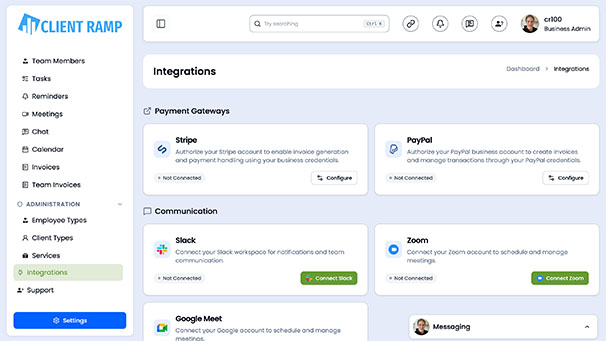
The Zoom API tool for ClientRamp enables seamless integration with Zoom's video conferencing platform, allowing you to create, schedule, and launch Zoom meetings directly from within your project management workflow. Using Zoom's Server-to-Server OAuth authentication, ClientRamp can programmatically generate meeting links, manage participants, and keep all of your video conference activity tied directly to the relevant client or project. This integration supports meeting creation, participant management, recording retrieval, and real-time webhook notifications — giving your team a complete picture of client communications without ever leaving the platform. By connecting Zoom to ClientRamp, businesses can streamline client kickoffs, project check-ins, and team collaboration, reducing the time spent switching between tools and ensuring every meeting is logged where it belongs.
Section Title Zoom API Credentials
Section Desc `To connect Zoom to ClientRamp, you will need to create a Server-to-Server OAuth app in the Zoom App Marketplace. Follow these steps:
Log In: Go to your Zoom account at https://zoom.us and sign in with your credentials.
Go to the App Marketplace: From the left-side panel, click Advanced, then select App Marketplace. Hover over the Develop dropdown in the top right and click Build App.
Create a Server-to-Server OAuth App: Select Server-to-Server OAuth and click Create. Give your app a name such as "ClientRamp Integration" and click Create to continue.
Copy Your Credentials: From the App Credentials tab, copy your Account ID, Client ID, and Client Secret. Store these securely as you will need all three to authenticate with ClientRamp.
Fill in App Information: Click on the Information tab and complete all required contact details, then click Continue.
Add Required Scopes: Click on the Scopes tab and add the necessary permissions for your integration. For meetings, add scopes for Meeting, User, and optionally Recording and Webinar depending on your needs.
Activate Your App: Once scopes are configured, click Activate your app to enable it.
Enter Credentials in ClientRamp: Navigate to Business Settings inside your ClientRamp dashboard and paste your Account ID, Client ID, and Client Secret into the Zoom API fields to complete the connection.